
216digital.
Web Accessibility

ADA Risk Mitigation
Prevent and Respond to ADA Lawsuits


WCAG & Section 508
Conform with Local and International Requirements


a11y.Radar
Ongoing Monitoring and Maintenance


Consultation & Training

Is Your Website Vulnerable to Frivolous Lawsuits?
Get a Free Web Accessibility Audit to Learn Where You Stand
Find Out Today!

Web Design & Development

Marketing

PPC Management
Google & Social Media Ads


Professional SEO
Increase Organic Search Strength

Interested in Marketing?
Speak to an Expert about marketing opportunities for your brand to cultivate support and growth online.
Contact Us

About

Blog

Contact Us
  • How Good Is Your Accordion Accessibility, Really?

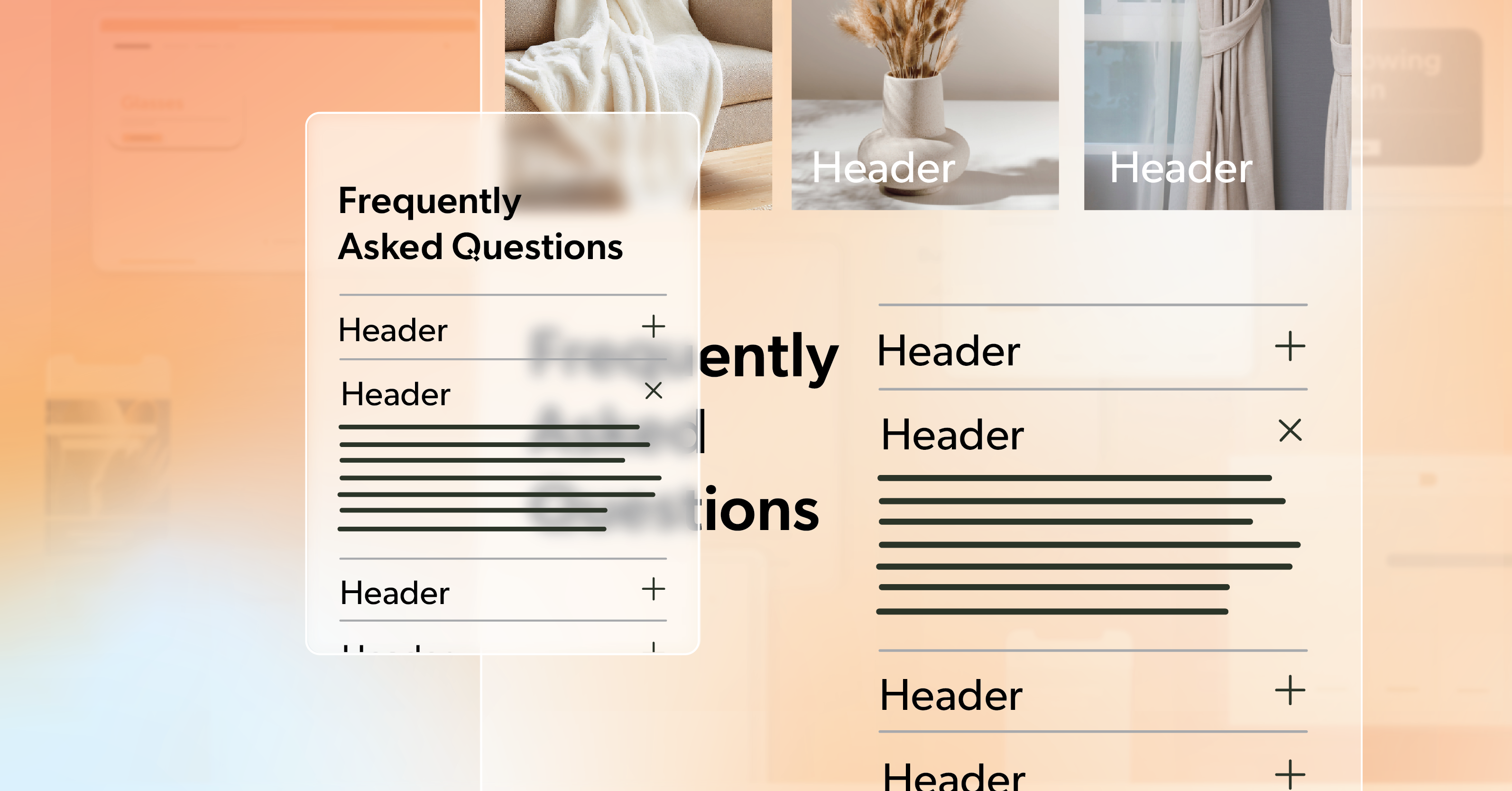
    How Good Is Your Accordion Accessibility, Really?

    You’ve seen it before — those long, scroll-heavy pages packed with information. Even with great content, the layout can feel like a wall of text. It’s easy to lose your place. Harder still to stay focused.

    That’s why accordions became so popular. They let you tuck sections away, helping people find what matters without forcing them to wade through everything else. They keep things clean, organized, and easier to digest.

    But here’s the trade-off: an accordion that isn’t coded for accessibility can lock people out instead of inviting them in. Keyboard users can get stuck. Screen readers might skip entire sections or misreport whether content is open or closed. What looks tidy on the surface can be chaotic behind the scenes.

    In this article, we’ll walk through how to build an accordion that’s not just functional but genuinely inclusive. By the end, you’ll understand what good accordion accessibility looks like — and how small development choices make a big difference for real users.

    The Anatomy of an Accordion

    At its core, an accordion is simple:

    • A header or button people click or focus on.
    • A content panel that expands or collapses to show details.

    These pairs usually live inside a wrapper — maybe a <div> or a <ul> if you want to give screen readers a count of how many sections there are. Adding an aria-label to that wrapper can help clarify that this group of buttons belongs together.

    Here’s a basic structure:

    <ul aria-label="Accordion Control Group">
      <li>
        <button aria-controls="panel1" aria-expanded="false" id="accordion1">Section One</button>
        <div id="panel1" hidden>
          <p>Content for this section.</p>
        </div>
      </li>
    </ul>

    Think of this as the skeleton. Once you have a clear hierarchy, you can start layering in keyboard behavior and ARIA states. Structure isn’t decoration — it’s how assistive technologies understand your layout and read it back to users. That’s the foundation of solid accordion accessibility.

    Keyboard Navigation: Where Real Accessibility Begins

    The keyboard test is where most accordions fall apart. If you can’t open, close, and move through the component using only a keyboard, something’s missing.

    A few simple rules make all the difference:

    • Enter or Space should open and close sections.
    • Tab should move forward through headings and visible content.
    • Shift + Tab should move backward through that same flow.

    When a section collapses, focus should jump back to the button that opened it — not vanish into the page. And every focusable element needs a visible indicator, whether that’s an outline or a subtle highlight.

    For longer accordions, a “Skip accordion” link above the section is a small courtesy that goes a long way. It lets keyboard users move past the entire block when they don’t need it.

    A good gut check? Set your mouse aside. If you can comfortably navigate the entire component using only your keyboard, your accordion accessibility is already miles ahead.

    Semantic HTML: Let Meaning Do the Heavy Lifting

    A lot of accessibility work is about using the right tools from the start. Semantic HTML gives browsers and assistive tech the information they need without extra code.

    Here’s one solid pattern:

    <h3>
      <button
        type="button"
        aria-expanded="false"
        aria-controls="panel1"
        id="accordion1-button">
        Billing Details
      </button>
    </h3>
    <div id="panel1" role="region" aria-labelledby="accordion1-button" hidden>
      <p>Your billing information goes here.</p>
    </div>

    This approach works because:

    • <button> is already accessible and keyboard-friendly.
    • aria-controls connects the button to its panel.
    • role="region" helps screen readers describe the area once it’s expanded.

    If you add icons or arrows, hide them from screen readers with aria-hidden="true". They’re visual cues, not meaningful content.

    When your markup already carries meaning, ARIA becomes a way to enhance — not patch — your accordion accessibility.

    Getting ARIA Right

    ARIA attributes are what make dynamic elements “talk” to assistive technology. Used well, they keep users informed about what’s changing on screen.

    The essentials:

    • aria-expanded shows whether a section is open or closed.
    • aria-controls links the button to the content it manages.
    • aria-hidden keeps hidden content out of the accessibility tree.
    • aria-labelledby ties the panel back to its header.

    Your JavaScript should keep these in sync. When a section opens, switch aria-expanded to “true” and remove the hidden attribute. When it closes, set it back to “false” and hide the content again.

    Add some visual feedback — an arrow that rotates or a smooth transition — so the interaction feels cohesive for everyone.

    Good accordion accessibility doesn’t just meet a spec; it creates a consistent, predictable experience no matter how someone browses.

    Native vs. Custom: Choosing the Right Path

    If you’re building something simple, the native <details> and <summary> tags might do everything you need. They’re semantic, keyboard-ready, and require almost no JavaScript.

    <details>
      <summary>Return Policy</summary>
      <p>Most items can be returned within 30 days.</p>
    </details>

    The downside? Styling can be limited, and behavior may vary slightly across screen readers — especially on iOS.

    For more complex use cases, like multi-step forms or sections that animate open one at a time, a custom setup gives you full control. Just remember that every bit of custom logic means you’re also responsible for maintaining the accessibility that native elements give you for free.

    Putting It All Together

    Imagine a checkout form split into three collapsible sections: Personal Info, Billing, and Shipping.

    Each section uses a button with aria-expanded and aria-controls. Each panel has role="region" and a unique ID. When users open a section, screen readers announce “Billing section expanded,” and focus moves smoothly to the first field.

    If JavaScript fails, the content is still visible and usable. That’s resilience — and it’s a hallmark of good accordion accessibility.

    When you build this way, you’re not adding “extra” accessibility. You’re writing cleaner, smarter code that works for everyone.

    Testing What You’ve Built

    No accessibility checklist is complete without testing.

    Manual Testing

     Use only your keyboard. Confirm that focus behaves as expected and hidden panels can’t be tabbed into.

    Screen Reader Testing

    Run through your accordion with NVDA, JAWS, or VoiceOver. Listen for clear announcements of “expanded” and “collapsed” states.

    Automated Tools

    Tools like Lighthouse or WAVE can flag broken ARIA references, missing labels, or overlapping IDs. Automated scans are helpful, but they’re not the finish line. Real users will always notice things an algorithm won’t. The goal isn’t perfection — it’s progress and empathy in practice.

    Keep Expanding Accessibility

    When built with care, accessible accordions do more than tidy up a layout — they make a site feel calmer, smarter, and easier to use. They’re a small reminder that good code and good experience go hand in hand.

    Every time you improve an interactive element, you make the web a little more welcoming.

    If you’re ready to take a closer look at your site’s accessibility — from accordions to forms, modals, and beyond — schedule an ADA briefing with 216digital. We’ll help you identify where your code stands today and how to make accessibility part of your workflow going forward.

    Greg McNeil

    October 30, 2025
    How-to Guides
    Accessibility, accessible accordion, accordion, accordion accessibility, How-to, web developers, web development, Website Accessibility
  • Accessible Accordion vs Disclosure: Dev Best Practices

    Disclosures and accordions show up all over the place—FAQs, menus, settings panels—you name it. They seem simple enough, right? But making sure they actually work for everyone takes more than just toggling some content and calling it a day.

    If you’ve ever wondered when to use <details> versus building an accordion with buttons and ARIA, or how to keep screen reader users from getting lost in a sea of hidden panels, you’re not alone. This guide breaks it all down—what to use, when to use it, and how to build a truly accessible accordion without overcomplicating the code.

    What Are Disclosure and Accordion Widgets?

    Disclosure Widgets: Simple, Native, and Often Overlooked

    Disclosures—also known as show/hide widgets—are ideal for toggling a single section of content. Think expandable FAQs or inline help that doesn’t clutter the UI by default.

    Here’s a basic example using semantic HTML:

    <details>
      <summary>Need more info?</summary>
      <p>Here are more details you might find useful.</p>
    </details>

    This pattern is fully native and built into the browser, which means it comes with keyboard support and screen reader compatibility right out of the box. You also get the open attribute, which allows you to control whether the content is expanded by default.

    The main advantage here is simplicity—no JavaScript needed, and fewer chances to introduce accessibility issues.

    Accordion Widgets: More Complex, More Control

    An accessible accordion expands on the idea of disclosure by managing multiple content panels. In most implementations, only one section is open at a time, helping users stay focused and reducing cognitive overload.

    You can build an accordion using multiple <details> elements, but if you want to control behavior more precisely—like closing other panels when one opens—you’ll need JavaScript.

    Here’s what a minimal HTML-only version might look like:

    <details name="accordion">
      <summary>Step 1</summary>
      <p>Instructions for step one.</p>
    </details>

    But to meet WCAG standards for a true accessible accordion, you’ll need to manage keyboard navigation, state indicators, and focus behavior—topics we’ll cover next.

    Accessibility Considerations Developers Must Prioritize

    Keyboard Navigation That Works for Everyone

    An accessible accordion must support meaningful keyboard interactions. Here’s what users expect:

    • Tab and Shift + Tab to move between interactive elements.
    • Enter or Space to toggle a section open or closed.
    • Arrow Up/Down or Home/End to move between accordion headers in more advanced versions.

    Missing any of these can make your component unusable for keyboard users. The WAI-ARIA Authoring Practices offer detailed guidance on accordion interaction patterns—worth bookmarking for reference.

    Use Semantic Elements—Always

    If there’s one golden rule, it’s this: never sacrifice semantics for styling.

    That means:

    • Use <button> for interactive triggers—not <div>, <span>, or anchor tags without href.
    • If you’re toggling visibility, it’s a button, not a link.
    • Ensure that elements behave as users (and assistive technologies) expect.

    Using semantic elements is one of the most effective ways to ensure your accessible accordion behaves predictably across screen readers and input types.

    Add ARIA Where Needed, Not Everywhere

    ARIA should enhance native HTML—not replace it. But when you’re building a custom accordion in JavaScript, ARIA becomes essential for communicating component state.

    Here’s a basic implementation:

    <button aria-expanded="false" aria-controls="info">More Info</button>
    <div id="info" hidden>
      <p>Here’s the additional info.</p>
    </div>
    
    const btn = document.querySelector('button');
    const content = document.getElementById('info');
    btn.addEventListener('click', () => {
      const expanded = btn.getAttribute('aria-expanded') === 'true';
      btn.setAttribute('aria-expanded', String(!expanded));
      content.hidden = expanded;
    });

    This ensures screen readers can track whether content is visible or hidden, creating a seamless experience for all users.

    Common Accessibility Mistakes (and How to Fix Them)

    Even seasoned devs slip up. Here are a few common issues that can break accessibility—and how to address them:

    MistakeProblemSolution
    Non-focusable triggers<div>s with onclick don’t work for keyboard usersUse <button> or add tabindex="0"
    Links used instead of buttons<a> without href doesn’t convey intentReplace with semantic <button>
    Missing state feedbackScreen readers can’t detect if content is expandedDynamically update aria-expanded
    Focusable elements in hidden contentUsers tab into content they can’t seeUse hidden or display: none correctly

    Most of these issues stem from skipping semantic HTML or relying too heavily on JavaScript without proper state management. An accessible accordion avoids these pitfalls by focusing on clarity, intent, and interaction feedback.

    Best Practices for Developers

    Building an accessible accordion that holds up in the real world means going beyond code snippets. Here’s what to keep in mind:

    Start with Progressive Enhancement

    Whenever possible, begin with HTML <details> and <summary>. They’re accessible by default and supported in all major browsers. Use JavaScript only when additional behavior—like limiting panels to one open at a time—is truly needed.

    Prioritize Focus Visibility

    An accordion is only as accessible as its focus states. Make sure every interactive element has a visible focus indicator, and don’t override :focus-visible in your CSS. This isn’t just a WCAG 2.2 requirement—it’s also just good UX.

    Avoid Overengineering with ARIA

    Don’t reach for ARIA unless you need to. Native HTML tends to be more robust across assistive technologies, and using ARIA incorrectly can make things worse. When in doubt, simplify.

    Test Like a User

    If you’re not testing with a keyboard, you’re flying blind. Add screen reader testing with NVDA, JAWS, or VoiceOver into your QA flow. Run Lighthouse and WAVE scans, but don’t rely on them alone—they won’t catch everything an actual user would encounter.

    Real-World Application: From Good to Great

    Let’s say you’re rebuilding a legacy FAQ section. It uses JavaScript to toggle open answers, but it’s riddled with <div>s and missing ARIA.

    Start by replacing the markup with semantic HTML:

    <details>
      <summary>What’s your return policy?</summary>
      <p>You can return items within 30 days.</p>
    </details>

    Then, enhance with JavaScript if you want only one section open at a time. Layer in ARIA attributes to improve screen reader support. Suddenly, you’ve turned a clunky widget into a polished, accessible accordion that works for everyone.

    Wrapping It Up

    Disclosures and accordions might seem interchangeable, but the differences matter—especially when accessibility is on the line. Whether you’re working on a quick FAQ or building a fully dynamic interface, an accessible accordion ensures users with different abilities can navigate and interact with your content.

    At the end of the day, accessibility isn’t about checking boxes—it’s about building better interfaces for everyone.

    Need help auditing your components?

    216digital offers in-depth accessibility support. Schedule an ADA compliance consultation to review your current implementation and ensure everything meets WCAG standards—without compromising design or performance.

    Greg McNeil

    May 8, 2025
    How-to Guides
    Accessibility, accessible accordion, Disclosure, How-to, HTML, semantic HTML, web developers, web development
216digital Scanning Tool

Audit Your Website for Free

Find Out if Your Website is WCAG & ADA Compliant


    216digital Logo

    Our team is full of expert professionals in Web Accessibility Remediation, eCommerce Design & Development, and Marketing – ready to help you reach your goals and thrive in a competitive marketplace. 

    216 Digital, Inc. BBB Business Review

    Get in Touch

    2208 E Enterprise Pkwy
    Twinsburg, OH 44087
    216.505.4400
    info@216digital.com

    Support

    Support Desk
    Acceptable Use Policy
    Accessibility Policy
    Privacy Policy

    Web Accessibility

    Settlement & Risk Mitigation
    WCAG 2.1/2.2 AA Compliance
    Monitoring Service by a11y.Radar

    Development & Marketing

    eCommerce Development
    PPC Marketing
    Professional SEO

    About

    About Us
    Contact

    Copyright 2024 216digital. All Rights Reserved.